USAGE GUIDE
Using Ginkgo
From install to license, the complete guide: first launch and pasteboard access, the copy light layer, History and / commands, Settings, and privacy.
Install & uninstall
Ginkgo requires macOS 14 or later. Both paths install the same app: once installed, Ginkgo settles into the menu bar and stays out of the Dock.
curl -fsSL https://ginkgo-downloads.certimate.me/releases/latest/install.sh | bashThe one-line installer fetches the latest release, places Ginkgo into Applications, and launches it. curl downloads carry no quarantine attribute, so there is no Gatekeeper friction on first launch. To pin a version, prefix the command with GINKGO_VERSION=v0.1.2.
- Disk image: download Ginkgo.dmg from the official download page, open it, and drag Ginkgo into Applications.
Or install with Homebrew (same published version as the DMG and install script):
brew tap usual2970/ginkgo && brew install --cask ginkgoUpgrading from Clipmate: Ginkgo was previously named Clipmate. First launch migrates your old history once, safely; old self-writes stay suppressed. Settings do not migrate (a fresh defaults domain), so give them one pass.
First launch
Ginkgo lives in the menu bar—the ginkgo leaf at the top right of your screen. On launch, a larger card with the leaf and the name floats for about 1.5 seconds, then the History window opens so you can see where clips are saved. Click the card before the timer finishes to dismiss it without opening History. While the card is visible it never activates the app and never takes focus.
Click the leaf, and the menu offers the everyday actions:
- 「Open History…」 (⌘H): open the History window.
- 「Settings…」: open the Settings window (⌘, works too).
- 「Unlock Full Version…」: open the purchase page on this site.
- 「Quit Ginkgo」 (⌘Q): quit the app.
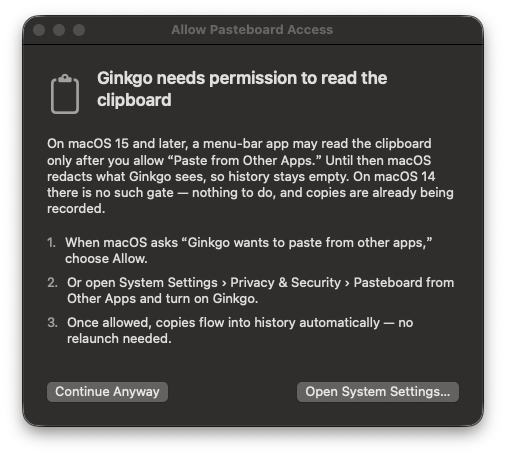
First launch also brings the one permission Ginkgo asks for: pasteboard access.
- 01On macOS 15 and later, background clipboard reads are gated by the system's 「Paste from Other Apps」 control. At launch, Ginkgo shows a small guidance window to explain this.
- 02Click 「Open System Settings…」 and turn Ginkgo on under System Settings › Privacy & Security › Pasteboard from Other Apps.
- 03「Continue Anyway」 skips for now—but only after you allow it do copies flow into history automatically, with no relaunch needed.
- 04On macOS 14 there is no such gate: nothing to do, and copies are already being recorded.
The copy light layer
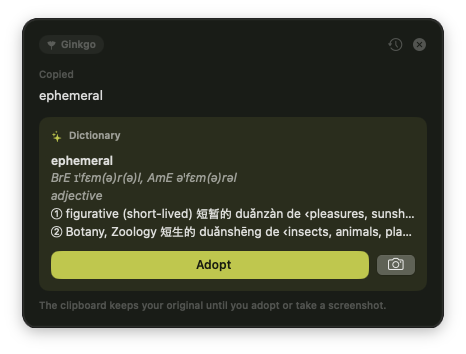
Press ⌘C in any app, and a small panel floats up in the bottom-right corner: the just-copied original on top (text, an image thumbnail, or file names), with the matched plugin's insight right below. The panel activates no app and takes no keyboard focus—your typing goes exactly where it was.
Timestamp: a Unix timestamp or ISO 8601 date-time becomes readable at a glance.Dictionary: copy an English word and its meaning unfolds in place—lookups run entirely on-device.Certificate: a PEM certificate summarized—subject, issuer, validity, and fingerprint.JSON:payloadpretty-printed with sorted keys.- Anything unmatched is shown exactly as copied.
「Adopt」 writes the insight's result back to the clipboard. Until you adopt, the clipboard keeps your original—and dismissing the panel changes nothing.
The panel auto-dismisses after about 6 seconds; a new copy replaces the content and restarts the timer. A close button is always there, or swipe the panel right—it follows the cursor and flings off-screen on release, while a short, leftward, or vertical drag springs back.
Beside Adopt sits a camera button: it captures the result as a signed share card (next section). There is also 「Open in History」, which jumps straight to this clip.
The History window
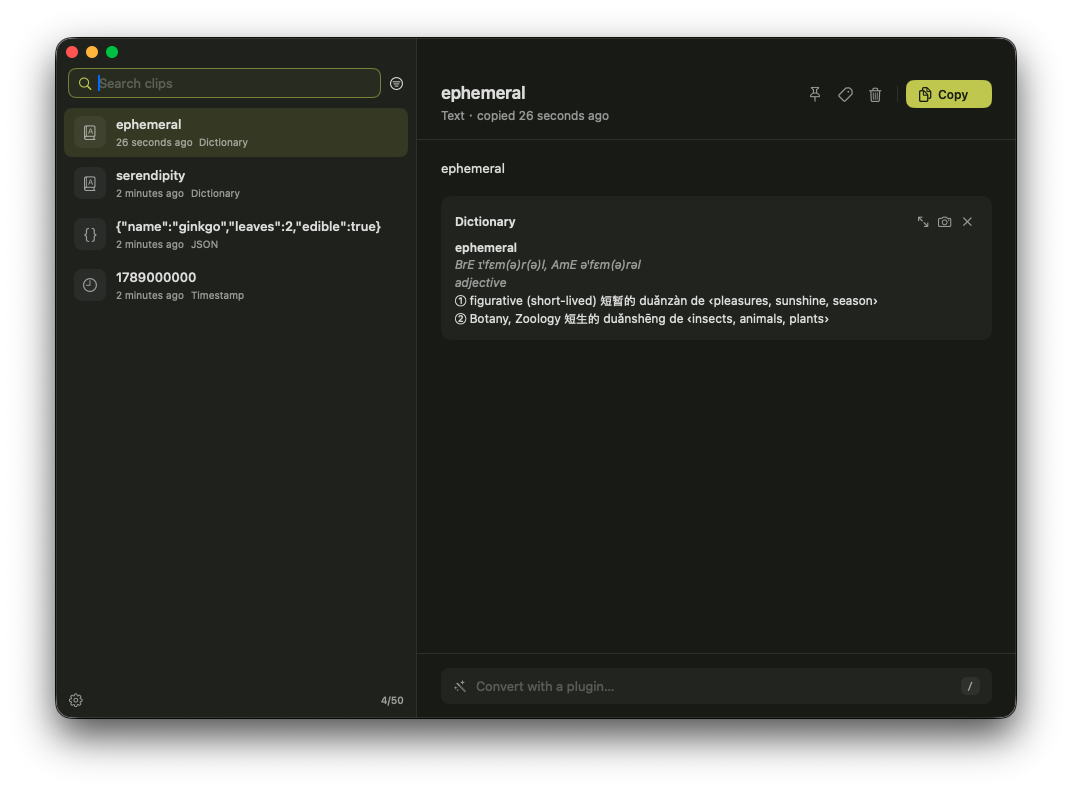
「Open History…」 (⌘H) in the menu bar opens a regular window (titled 「Ginkgo History」): the list on the left, the detail pane on the right, the split resizable, with the window's size and position kept across launches. Unlike the light layer, it takes keyboard focus normally—this is a management surface you opened on purpose.
- Browse: each row shows a kind icon (doc/photo/folder), the title, a relative timestamp, tags, and a pin marker; with the list focused, ↑/↓ move the selection.
- Find: ⌘F brings up search—case-insensitive substring match over title, preview, and body; the tag filter shows clips carrying ANY selected tag; clips copied while the window is open appear live.
- Detail: a row of actions under the title—pin, tags, delete, and the prominent 「Copy」; deletes confirm by name, and an undo bar offers ⌘Z to bring the clip back with its metadata and saved conversions.
- Organize: the pencil beside the title renames in place (Return saves, Esc cancels); tags attach and get created in a popover; deleting a tag removes it from every clip after a confirmation (not undoable).
- Restore: 「Copy」 puts the original back through the same guarded writer the light layer uses—the restore write is never re-captured and never re-raises the layer.
- Agent: the sparkles control at the foot of the list column (beside the gear) opens the Agent window—a global hub for licensed, configured installs.
/ commands
Type / at the detail foot and Ginkgo lists the enabled plugins that fit this clip; keep typing to narrow, Return or a click runs one. A success is saved on the record and still there when you reopen; conversions never write the clipboard and never add an extra row.
Base64 / URL transforms and MD5 / SHA-256 are listed for text clips and run only on demand—an encoder or hash would match nearly any text and crowd out the insight the content asks for.
Translate (/translate, requires macOS 26 or later): translates a text clip on this Mac with Apple's Translation framework. It never runs on copy.
- The target language is chosen at invocation, from ten languages: 简体中文, English, 日本語, 韩语, 法语, 德语, 西班牙语, 俄语, 葡萄牙语, 意大利语.
- Type to filter by Chinese name, English name, or code (
jafinds Japanese), pick with ↑↓ or a click; a plain Return runs the pre-highlighted default—Settings › Plugins › Translate › Default target language (简体中文 on a fresh install). - The source is detected automatically; a clip already in the target language, an undetectable source, or an unsupported pair shows a one-line hint and saves nothing.
- The result is saved as the record's conversion, titled 「source → target」; re-translating replaces the previous translation.
- Translation needs the pair's language packs: a missing pack points you to System Settings › General › Language & Region › Translation Languages (the download comes from Apple); below macOS 26 the command is not listed, and its Settings sub-page says 「Requires macOS 26 or later」.
Markdown (/markdown): turns a text clip or a copied .md / .markdown file into a self-contained styled HTML document. History shows an in-app rendered preview plus selectable HTML source, and 「Copy HTML」 writes through the guarded path with no new history row. Fenced mermaid blocks render as diagrams (bundled runtime, no network). Never runs on copy.
Format (/format): pretty-prints a text clip on this Mac as one of JSON, JSONC, YAML, XML, JavaScript, TypeScript, HTML, or CSS. The language is picked in the command's second stage (JSON preselected; no auto-detection); a mismatched pick or a clip over ~250 KB shows a one-line hint and saves nothing, and everything formats locally through bundled engines—no network.
Agent (/agent, requires a license): runs a multi-step, tool-using AI agent on this clip with your own cloud model key (OpenAI, Anthropic, or any OpenAI-compatible endpoint—configured in Settings). It can read the clip, search history, read files the clip refers to, and fetch public web pages, with every gated call confirmed by a card before it happens; type a free-form instruction after the command to steer it. Never runs on copy, and saved runs carry their tool calls and sources into the reader.
Running the agent: answers stream in as they generate. On the light layer, the clip's preset chips start a run at a click; 「More…」 opens the Agent window on that clip (carrying any finished answer). In History, /agent runs in the detail pane; the list foot's sparkles opens the same Agent window as a global hub. The window is document-style: each turn reads top to bottom as your question, the steps the agent took (one quiet row per tool: what it did and exactly which URL, path, query, or clip), and the answer as it streams. The multi-line composer sends on Return (Option- or Shift-Return breaks the line, an in-progress IME composition is never sent), and Esc stops the run—or denies a pending confirmation—without closing the window.
Sessions: the left sidebar lists persisted conversations—click to switch, + for a new session without a clip anchor (a short hint until you type), hover a row to reveal delete (or use the context menu). Opening from a clip or /agent lands in (or creates) a session tied to that history row; 「Save as conversion」 on a finished answer writes to that clip. Only one agent run is active app-wide at a time.
Tool confirmations: each card names the tool, shows its complete arguments, and offers Deny, 「Always allow」 for exactly that scope (a domain for web fetches, otherwise the tool itself), and 「Allow once」. Allow once is the only prominent button and is deliberately never bound to Return—pressing Return on a confirmation does nothing, so a yes is always a deliberate click.
All saved conversions share one reader window: every open adds a tab, and opening an already-open conversion just selects its tab; with a single tab the window shows no tab chrome, and tabs are not restored across launches. Each tab keeps its own scroll position, Preview / Source choice, and copy feedback, while ⌘+ / ⌘− / ⌘0 zoom (80–200%) stays shared by the whole window; the Markdown preview and the card's copy actions work as before. ⌘W closes the current tab (the last tab closes the window), Esc closes the window, the context menu offers Close Others and Close to the Right, and removing a conversion or its clip closes only its own tab.
Settings
Open it from the app menu, the menu bar's 「Settings…」, or the gear at the foot of History's list column (⌘, works too): a fixed-size window whose content scrolls, where every choice applies live with no relaunch.
- Language: Follow System (the default; any
zhpreferred language resolves to Simplified Chinese, anything else to English), English, or 简体中文—menus, window titles, the light layer, and plugin insights all switch together. - Appearance: Follow System (Warm Paper in light, Ink Leaf in dark), Warm Paper · Light, Ink Leaf · Dark, or macOS Native—the light layer, launch splash, History, and Settings all follow.
- Share Card Theme: a sub-page with live previews of the four themes; pick one directly (Back or Esc returns).
- Plugins: a row shows how many are on; the page lists every plugin as a card in priority order—name, one-line description, and for external packages an 「External」 badge with the package version—each with an inline switch that applies at once and persists. The card order IS the match priority: right-click a card to move it up, down, or to the top. Most clip plugins ship as first-party
.ginkgopluginbundles synced from the app on launch; Markdown and Agent stay built in. A card opens a detail page with the 「Enabled」 toggle, the description, and its settings (Translate's 「Default target language」, Auto-cleanup's 「Retention days」, and the licensed Agent's provider, base URL, model, and API key). Licensed installs also list the global plugin Auto-cleanup under its own header—hidden entirely on the free tier. This is the only place plugins are managed. - External plugins: copy a
.ginkgopluginfolder into~/Library/Application Support/Ginkgo/Plugins/—no marketplace, no in-app installer—then press 「Rescan」 (the page footer also opens the folder and lists packages that were refused, with reasons). An external switch turns on only after you grant every capability its manifest declares; a grant is consent, not enforcement. Externals are free-tier, off by default, and never auto-update—a changed package keeps the old code until you relaunch, flagged with a hint.
History sync across Macs
Sync is the official end-to-end encrypted history plugin (dev.ginkgo.sync, hand-installed during author testing): history is sealed on your Mac before upload, and the service stores ciphertext only. Sync is sold separately from the app license and needs a subscription — Standard ($1.29/month or $9.99/year, 1 GB vault, attachments up to 10 MB) or Plus ($1.99/month or $19.99/year, 10 GB, up to 100 MB). Checkout ends on a website page that shows your subscription key once; you enter it when creating the vault.
- 01In Settings › Sync, choose Create vault: set a passphrase (twice) and a device name, then paste your subscription key.
- 02On another Mac, install the plugin and choose Join vault; generate a pairing code on an enrolled Mac (8 characters, one-time, 5 minutes) and type it in.
- 03History then syncs in the background — on launch, every ~45 s while running, 5 s after local saves, and on wake. Sync Now and Cancel live on the same page.
- The passphrase wraps the vault key locally (Argon2id) and never leaves the Mac; losing it with no enrolled Mac remaining means the cloud copy is permanently unreadable — nobody can reset it.
- One subscription carries one live vault; rebinding the key to a new vault replaces the old one (it stops syncing and is deleted after 30 days; the same key can swap back within that window). A cancelled subscription stops syncing and starts the same countdown, shown in the app and on the web stats page.
- The plan's capacity caps attachment uploads only — records and deletes always push, so an over-quota vault can shrink itself. Over-limit attachments arrive marked unavailable while text keeps flowing.
- A Mac without an activated app license pulls at most the free tier's 200 clips; activating the license triggers a one-time full re-pull.
- Settings › Sync links to the private stats page (a one-time code signs you in): upload heatmap, totals, streak, storage composition, subscription state, and the billing portal.
License & the free tier
The free tier is not a trial: copying, the light layer, and plugin insights are fully unlimited. Once history holds 200 clips, new copies stop being saved; everything already saved is kept forever, searchable and restorable—and deleting down below 200 re-opens intake automatically.
Unlimited history unlocks with a serial-number license: $3.99/year (an auto-renewing subscription) or $7.99 once, priced in USD and hosted by Dodo Payments. The serial arrives by email right after checkout, and one serial activates up to 2 devices.
- 01Enter the serial under Settings › License and click 「Activate」; the first activation needs a connection, after that Ginkgo works offline.
- 02The annual subscription renews with the same serial—each ~30-day silent revalidation pushes the license forward; on cancellation, expiry, or revocation the app falls back to the free tier and keeps every saved clip.
- 03Lifetime is paid once and kept forever; gift keys last 14 days from activation.
- 04Slots full? Open Settings › License on an old device and click 「Unbind This Device」 to free one (that Mac returns to the free tier), then activate on this one.
Keyboard shortcuts
The shortcuts Ginkgo scatters across its menus and surfaces, gathered in one place:
⌘C | copy in any app—Ginkgo wakes in the corner (a system action Ginkgo captures) |
⌘H | open History |
⌘, | open Settings |
⌘Q | quit Ginkgo |
⌘F | bring up search inside the History window |
↑↓ | move the selection in the list; move between translation language candidates |
Return | run the selected command or language; save a rename; attach tags |
Esc | cancel a rename; clear search; go back from a command's parameter list; clear multi-select; close the reader window |
⌘Z | undo a delete—the clip returns with its metadata and saved conversions |
⌘-click | add or remove one clip from the selection |
⇧-click | select a range of clips |
⌘+ / ⌘− / ⌘0 | text zoom in the conversion reader (80–200%) |
⌘W | close the reader's current tab (the last tab closes the reader window) |
⌃Tab / ⌃⇧Tab | cycle the reader's tabs (⌘⇧] / ⌘⇧[ do the same) |
⌘1–⌘8 / ⌘9 | jump to the reader's Nth / last tab |
External plugins
Most clip plugins (Timestamp, Dictionary, JSON, Translate, Format, and the text/hash transforms) ship as first-party .ginkgoplugin bundles inside the app—Ginkgo syncs them into ~/Library/Application Support/Ginkgo/Plugins/ on launch unless you uninstalled them (uninstall is confirmed in Settings). Markdown and Agent stay built into the app. Official catalog plugins: opening Settings › Plugins fetches the catalog once per visit—with an empty search a Recommended section lists up to six uninstalled official plugins (most-downloaded first) and a search matches installed and uninstalled plugins together on one card layout; an installed plugin shows Update when the catalog has a newer version. Each artifact is verified (SHA-256 plus code signature) before quarantine is cleared and it lands in the plugins folder; first install turns the plugin on when no extra capability grants are required. Uninstall a package-backed plugin from its detail page (confirmed). Third-party bundles stay manual: copy the folder in and press Rescan. Each bundle is validated before any code runs; refusals show at the foot of the page with a typed reason.
- 01Manual install (third-party bundles): copy
YourPlugin.ginkgoplugininto the Plugins folder (Settings › Plugins › Open Plugins Folder, or the path above). - 02If you downloaded the bundle, remove quarantine yourself:
xattr -dr com.apple.quarantine YourPlugin.ginkgoplugin—Ginkgo never strips it for packages you copy in by hand (marketplace installs clear it automatically after verification). - 03Rescan, grant every capability the manifest declares, then enable the switch. Grants are consent, not enforcement—Ginkgo cannot sandbox third-party code.
Privacy
- All storage is local (Application Support); clip content never leaves this Mac unless you send it somewhere yourself.
- License calls: activation and silent revalidation go straight to Dodo Payments, carrying only the serial, the license instance id, and the device name—never clip content. A never-activated install makes zero network calls until you open the Settings › Plugins page.
- Apple translation language packs: downloaded by the system the first time a translation is used; Apple collects usage metrics (bundle id and language pair) but never the translated content. Dictionary lookups and translation otherwise run on-device—cloud translation APIs were deliberately not used.
- Plugin marketplace: opening the Settings › Plugins page fetches the official catalog once per visit (the Recommended section and search both read that snapshot—no request at launch or while typing), downloads the artifact when you Install or Update, and posts an anonymous install counter (plugin id and version only—never clip content); unactivated installs can use it too. The web catalog (/plugins) is browse-only and serves no downloads.
- User-initiated agent runs: the licensed, opt-in Agent plugin sends prompt content only to the cloud provider you configured with your own API key, plus web pages the agent fetches when you approve a web_fetch call. The plugin makes no network calls until you enable it, configure a provider, and start a run, and its API key lives in the login Keychain—never in history, conversions, or share cards.
- On macOS 15 and later, background pasteboard reads are gated by 「Paste from Other Apps」—see First launch.
- External plugins you enable are third-party code: clip text enters their process after you grant declared capabilities; any network or file use beyond that is outside Ginkgo's control—see External plugins.